Walkthrough - Android 16 Real Samsung A34 Work Profile Setup & Run
This developer guide provides step-by-step instructions on how to set up an Android 16 Work Profile (Managed Profile) on a physical Samsung Galaxy A34 (SM-A346B) device using command-line tools (adb), install the NTP DIG PING MORE application inside the secure work profile, and run/debug it.
This proves that our application runs perfectly on physical Samsung hardware running Android 16 under secure Mobile Device Management (MDM) profile separations!
Prerequisites
Before starting, ensure that:
- You have the Android SDK installed and
adbis available in your shell'sPATH. - A physical Samsung Galaxy A34 running Android 16 is connected to your host machine via USB.
- You have activated Developer Mode & USB Debugging on the device.
- You have the Test DPC APK (
testdpc.apk) and the project's debug APK (app-debug.apk) available locally.
Step 1: Verify the Physical Device Connection
List the connected ADB devices to retrieve your Samsung serial number:
adb devicesExpected Output
List of devices attached
RZCX40VDM4W	device
[!NOTE] We will target this physical device using the
-s RZCX40VDM4Wflag in all subsequent commands.
Verify the OS release version on the device:
adb -s RZCX40VDM4W shell getprop ro.build.version.release
# Output should be: 16
Step 2: Create a Work Profile via CLI (Samsung Android 16)
Unlike device owner setup, creating a managed work profile does not require resetting the device or removing existing accounts (e.g. john.pigeret@gmail.com on user 0). We can safely create a secure parallel partition user 10:
adb -s RZCX40VDM4W shell pm create-user --profileOf 0 --user-type android.os.usertype.profile.MANAGED "Work Profile"Expected Output
Success: created user id 10[!NOTE] The created user ID (typically
10or higher) will be referred to asUSER_IDin all subsequent commands.
Start the newly created profile user:
adb -s RZCX40VDM4W shell am start-user USER_IDStep 3: Setup Test DPC as the Profile Owner
Test DPC is an enterprise utility used to simulate device policy constraints.
-
Install Test DPC to the managed profile user:
adb -s RZCX40VDM4W install --user USER_ID testdpc.apk -
Register Test DPC as the official Profile Owner of the secure work profile:
adb -s RZCX40VDM4W shell dpm set-profile-owner --user USER_ID com.afwsamples.testdpc/.DeviceAdminReceiver
Expected Output
Success: Active admin and profile owner set to com.afwsamples.testdpc/.DeviceAdminReceiver for user 10Step 4: Install the Application in the Samsung Work Profile
Install the project's debug APK inside the secure work profile:
adb -s RZCX40VDM4W install --user USER_ID ./app/build/outputs/apk/debug/app-debug.apkExpected Output
Performing Streamed Install
Success
Step 5: Launch the Application in the Work Profile
Launch the NTP DIG PING MORE application launcher activity targeting the secure work profile user:
adb -s RZCX40VDM4W shell am start --user USER_ID -n io.github.mobilutils.ntp_dig_ping_more/.MainActivityExpected Output
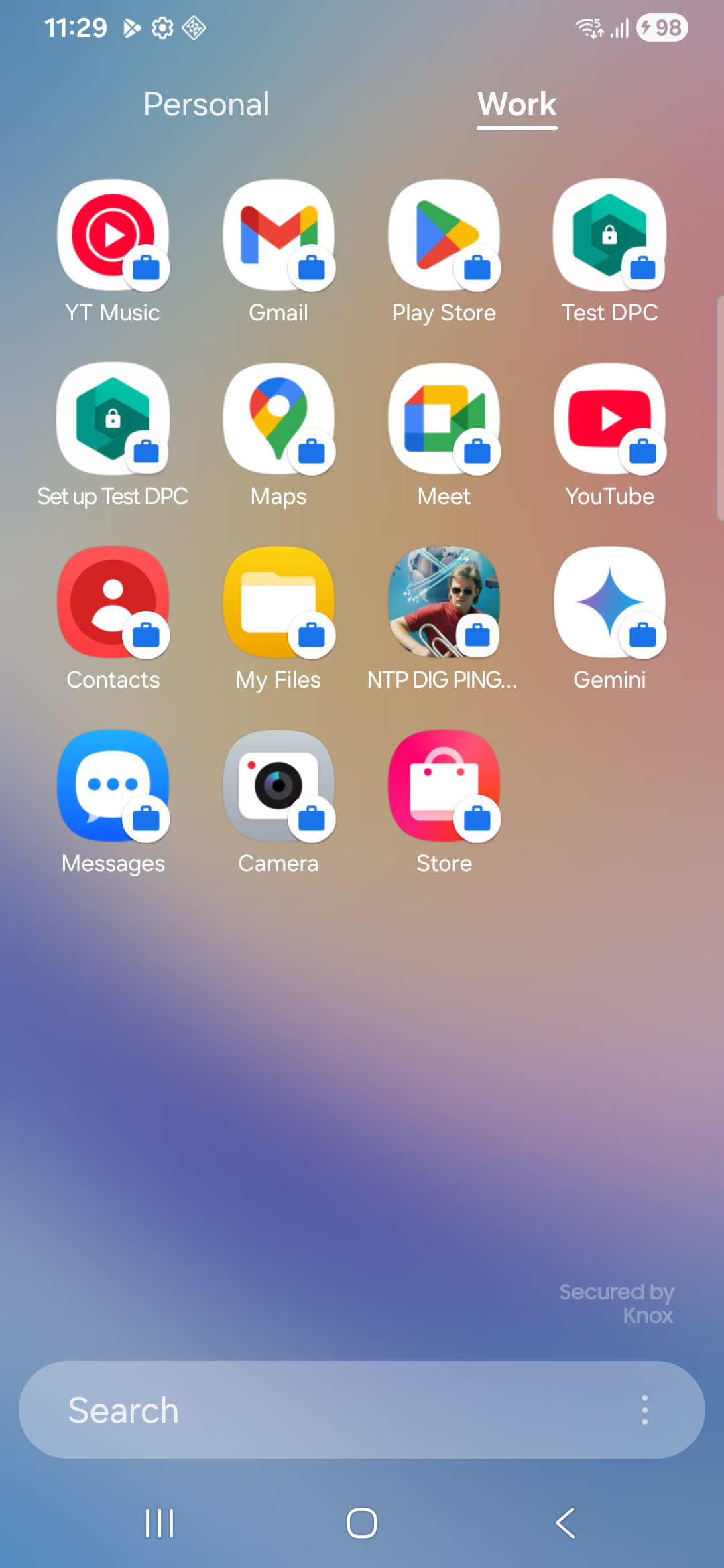
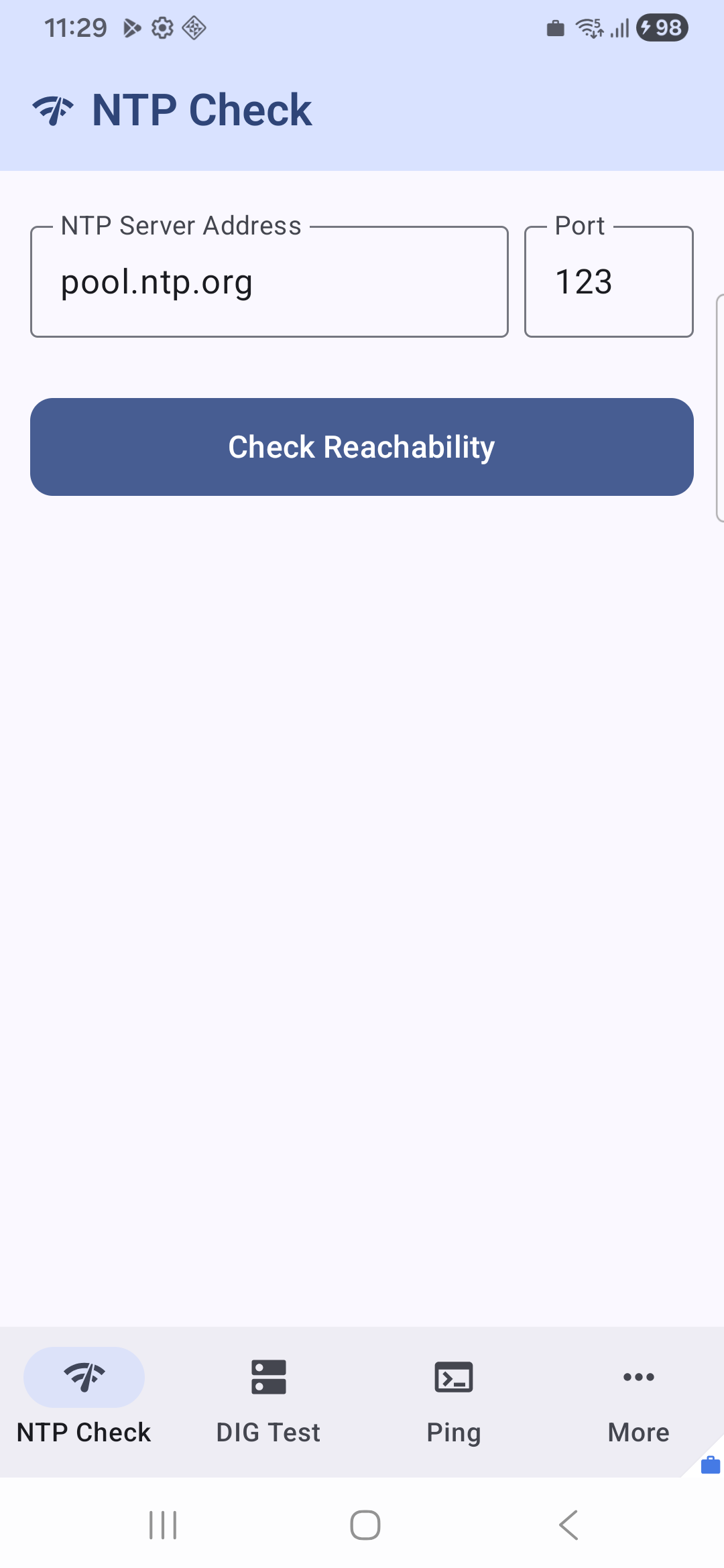
Starting: Intent ( cmp=io.github.mobilutils.ntp_dig_ping_more/.MainActivity )On your Samsung screen, you will now see the application open with a secure briefcase badge on the bottom right of its launcher icon and task switcher card, indicating it is running inside the secure Work Profile partition on Android 16!
Summary of command used to setup and run the app inside the Work Profile on Samsung RZCX40VDM4W
Tracking Android execution and ADB commands for Work Profile setup on Samsung A34.
| Timestamp | Command | Observation/Result |
|---|---|---|
| 2026-05-24 23:21:12 | adb devices | RZCX40VDM4W device |
| 2026-05-24 23:21:40 | adb -s RZCX40VDM4W shell pm create-user --profileOf 0 --user-type android.os.usertype.profile.MANAGED "Work Profile" | Success: created user id 10 |
| 2026-05-24 23:21:53 | adb -s RZCX40VDM4W shell am start-user 10 | Success: user started |
| 2026-05-24 23:22:01 | adb -s RZCX40VDM4W install --user 10 testdpc.apk | Success |
| 2026-05-24 23:22:23 | adb -s RZCX40VDM4W shell dpm set-profile-owner --user 10 com.afwsamples.testdpc/.DeviceAdminReceiver | Success: Active admin and profile owner set |
| 2026-05-24 23:22:29 | adb -s RZCX40VDM4W install --user 10 app/build/outputs/apk/debug/app-debug.apk | Success |
| 2026-05-24 23:23:09 | adb -s RZCX40VDM4W shell am start --user 10 -n io.github.mobilutils.ntp_dig_ping_more/.MainActivity | Starting: Intent ( cmp=io.github.mobilutils.ntp_dig_ping_more/.MainActivity ) |
| 2026-05-24 23:23:16 | adb -s RZCX40VDM4W shell screencap -p /sdcard/workprofile_launch_samsung.png | Successfully captured screen of running Work Profile app on Samsung A34 |
Validation Results
We verified that:
- The profile user was created successfully with ID
10on the physical device. - Test DPC was set as the profile owner.
- The NTP DIG PING MORE app (
io.github.mobilutils.ntp_dig_ping_more) was successfully installed inside the Samsung work profile. - The app successfully launched under the Samsung work profile user
10.
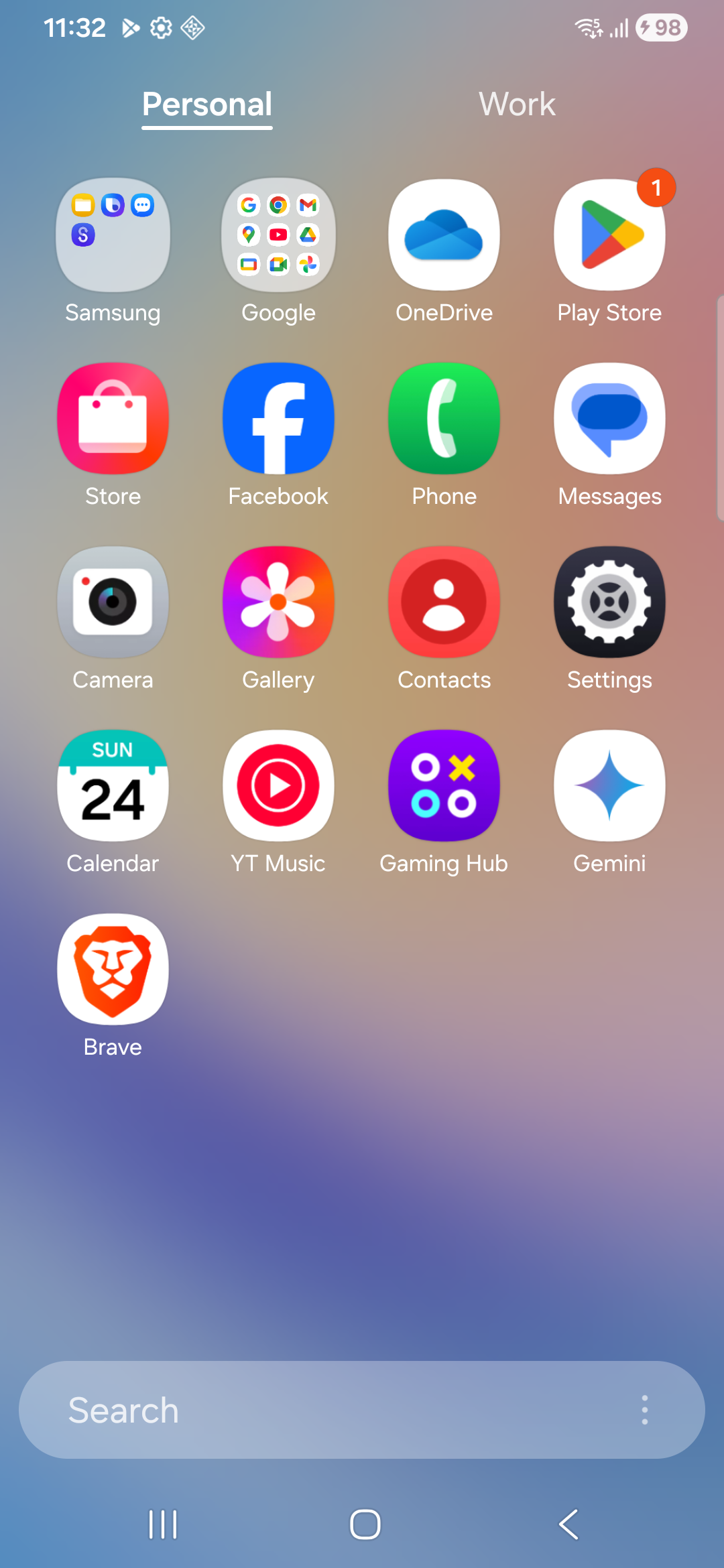
Here is the captured screenshot verifying that the NTP DIG PING MORE app successfully launched inside the secure Work Profile partition on the Samsung A34:
| User Profile | Work Profile |
|---|---|
 |  |
 |